📘 Next PMS — User Guide
Project management, time tracking, weekly planning and team performance for Enfono. This guide covers everything from your first check-in to how management reads the Performance Score.
Overview
Next PMS is Enfono's project management system: sprint-based IT project tracking with a built-in timer, attendance check-in, weekly capacity planning, meeting calendar, client portal and automated reporting.
| Area | What you do there |
|---|---|
| Projects | Sprints, Kanban board, Gantt, budget & team |
| My Tasks | Your assigned tasks across all projects |
| Time Logs | Timer history — every logged work session |
| Weekly Plan | Management's projects × people hour allocations for the week |
| Calendar | Scheduled meetings with attendees and mandatory minutes |
| Task Report | Filterable task table + Productivity + Performance (management) tabs |
| Client Portal | Token-based project view for customers — no login needed |
Getting Started
- Log in at
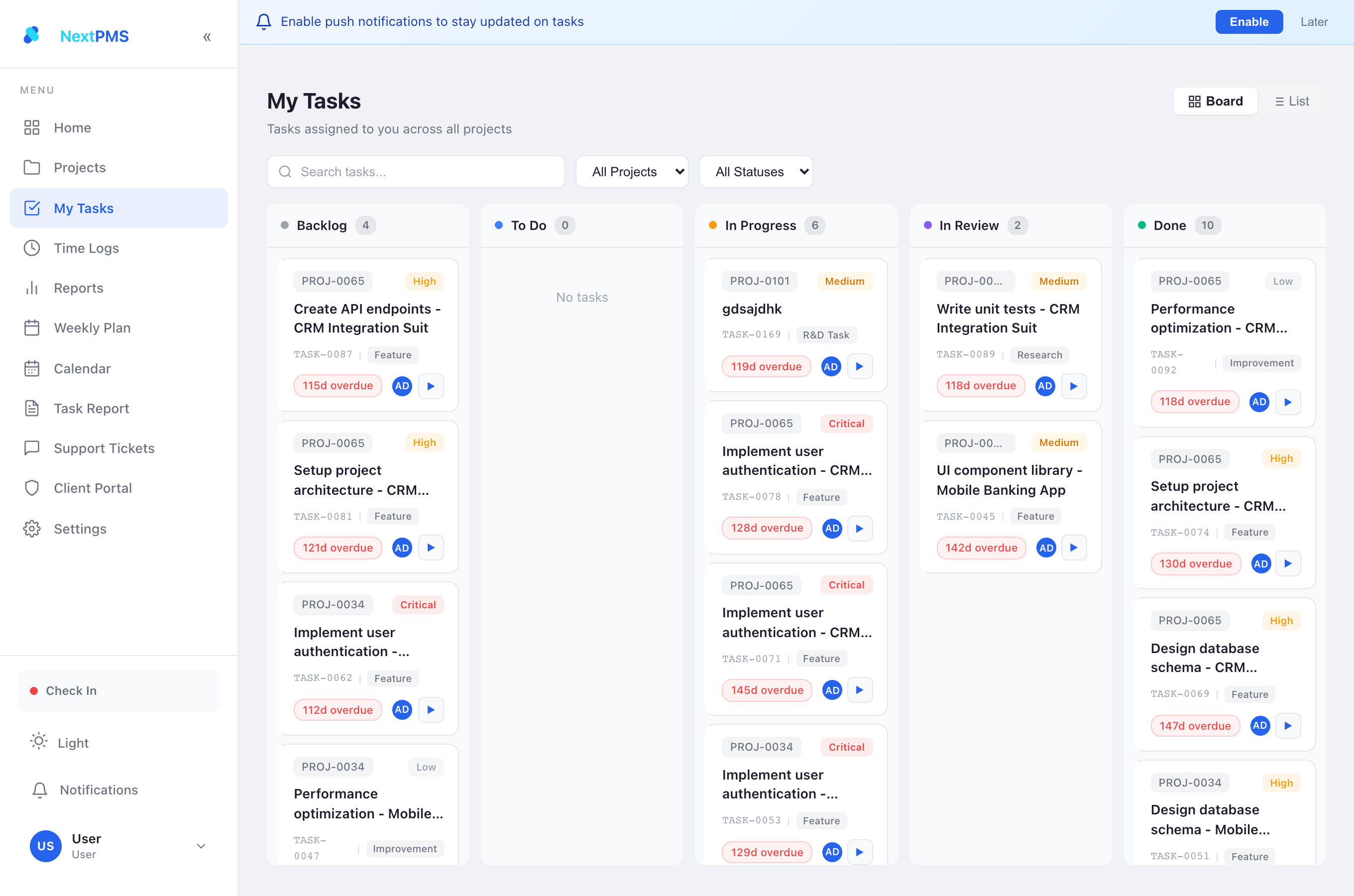
https://office.enfono.com/next-pmswith your ERPNext account. No PMS menu? Ask an admin to enable your PMS Access (Settings → Team → User Management). - Check in — click ● Check In at the bottom of the sidebar when you start your day. Check out when you leave. This is your attendance record.
- Open My Tasks — everything assigned to you, sorted by priority and due date.
- Start the timer on the task you're working on (or press T). The timer is the only thing that counts as logged work hours.
- Stop the timer when you switch tasks or take a break. Move the task across the Kanban board as it progresses.
Roles & Access
| Role | Access |
|---|---|
| Next PMS | Base role — required for everyone using the app |
| PMS Manager | Full control of own/assigned projects, team management, budgets, all reports, Performance tab |
| PMS Developer | Work on assigned tasks, own time logs; reports/settings hidden by default |
| PMS Viewer | Read-only on assigned projects |
| PMS Customer | Client portal only |
System Manager / Administrator see everything. Per-user fine-tuning (sidebar items, project tabs, feature switches) lives in User Detail → Permissions (admin only).
⚙️ Admin Guide
Everything below is admin-only (System Manager / Administrator). All of it lives in the SPA under Settings → User Management — no desk access needed except where noted.
1. Register / onboard a user
Any ERPNext user on the site can be given PMS access — you do not create a separate PMS account.
- Open Settings → User Management (admin only).
- Find the person in the user list (they must already exist as an enabled ERPNext System User; create them in the desk User list first if not).
- Toggle PMS Access ON. This grants the base Next PMS role plus PMS Developer as the starting role.
- Set their functional role from the dropdown — PMS Manager / PMS Developer / PMS Viewer. Changing the role replaces the previous one (the base role stays).
- For a client contact, give PMS Customer instead and share a portal token (see Client Portal).
2. Set the hours baseline
In User Management → settings, set Working Hours / Day (default 8). This single number is the bar behind Utilization, every target, and the whole Performance Score. Sundays, each employee's holiday list and approved leave are removed automatically — you do not configure those here.
3. Configure automated emails
Same User Management → settings panel. Each toggle maps to one scheduled job (full list in Automated Emails):
- Daily AI report — turn on, set the recipient, and paste an AI provider key + model (used only to write the narrative). Fires 03:00 daily.
- Weekly summary — turn on and set the Weekly Team Summary Recipient. This one address also receives the monthly leaderboard. Members always get their own copy. Fires Saturday 07:00.
- Attendance reminders — turn on and set manager digest recipients. Fires 08:30 on working days.
- Save. Changes take effect on the next scheduled run — no restart needed.
monthly_performance_enabled = 0 on the PMS AI Settings single doctype in the desk (this one toggle isn't in the SPA panel yet).4. Per-user permissions
Fine-grained control — which sidebar items, project tabs and features (e.g. finance/cost visibility) a user sees — lives in User Detail → Permissions (open a user from User Management). Managers see everything relevant to their projects by default; developers get a restricted set.
5. First-time setup checklist
- Enable PMS Access for the team; set one PMS Manager.
- Set Working Hours / Day and turn on the emails you want.
- Create a Project, add team members with hourly rates (rates drive cost + budget), set a budget, and move it to Active (timers are blocked on Planning-stage projects).
- Publish the first Weekly Plan so Plan Adherence has something to score.
- Ensure staff check in and run timers from day one — every report is empty until there are time logs.
Projects & Sprints
Project lifecycle
A project holds: budget (mandatory), hourly-rated team members, sprints, tasks, expenses and client-portal settings. Budget utilisation is tracked automatically from timer cost — alerts fire at 80%.
Sprints
Plan the backlog by dragging tasks into a sprint, activate it, and track burn on the project dashboard and Gantt view.
Tasks & Kanban
| Field | Who sets it | Why it matters |
|---|---|---|
| Estimated hours | PM (≈90% of the time) | Feeds Efficiency and the Performance Score's Delivery dimension |
| Due date | PM / assignee | Feeds Timeliness and overdue counts |
| Actual hours | Automatic from timer | Never typed by hand |
| Priority / Type / Reviewer | PM / assignee | Filtering, review flow |
@mention to notify a teammate.Time Tracking
- Open the task → click Start Timer (or press T).
- Work. The elapsed time survives page reloads. A reminder fires if a timer runs 4+ hours.
- Stop when done or switching. Duration and cost (hours × your hourly rate) save automatically as a PMS Time Log.
Review or fix your entries under Time Logs. Every report — daily AI report, weekly email, Productivity, Performance — reads from these entries.


Check-In / Check-Out
- Check in when you start your day, check out when you finish — sidebar button or the mobile app.
- Missed check-ins/check-outs appear in your weekly email and trigger reminders.
- Attendance counts only effective working days: Sundays, public holidays (your holiday list) and approved leave are excluded automatically.
Weekly Plan
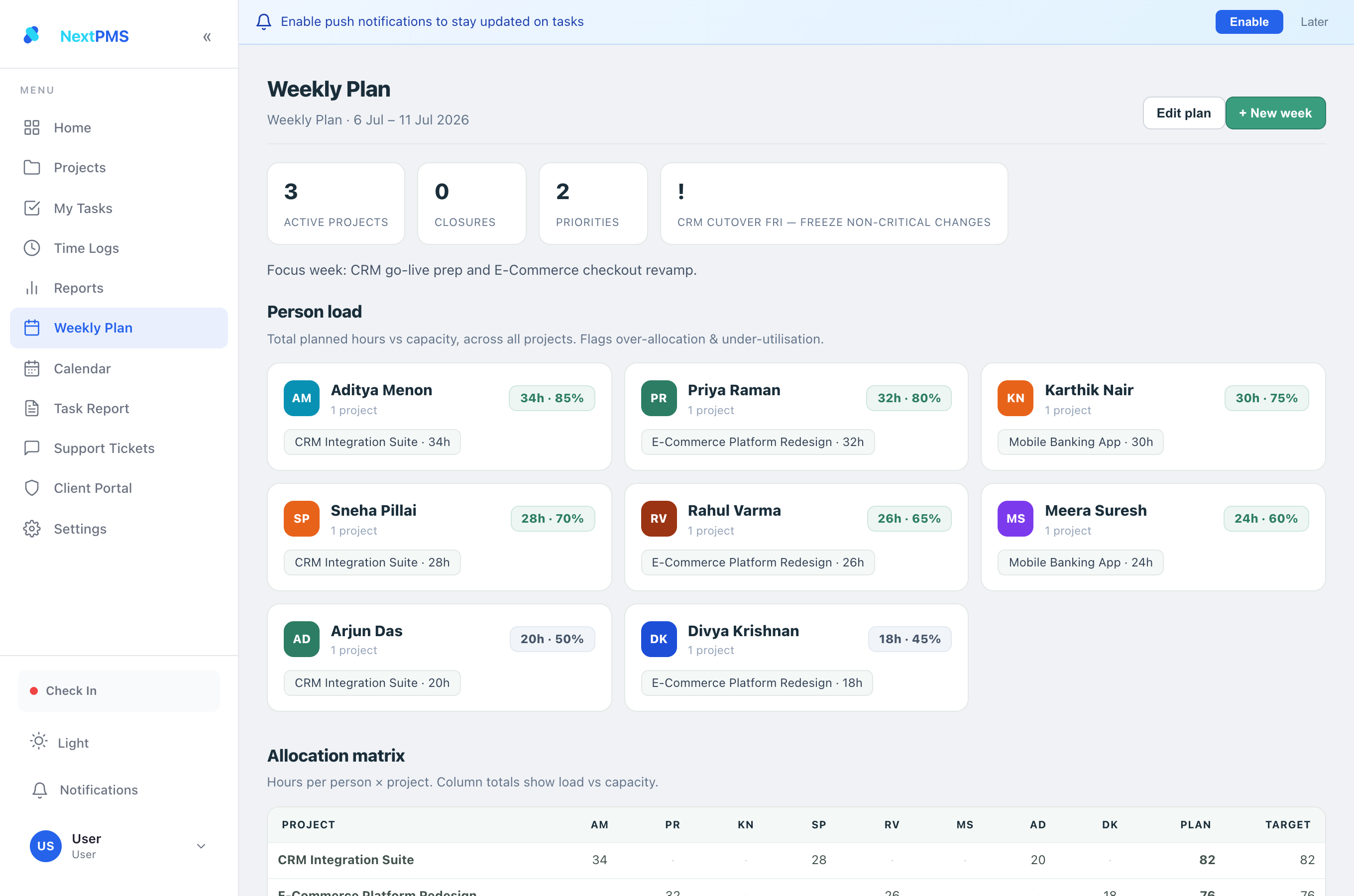
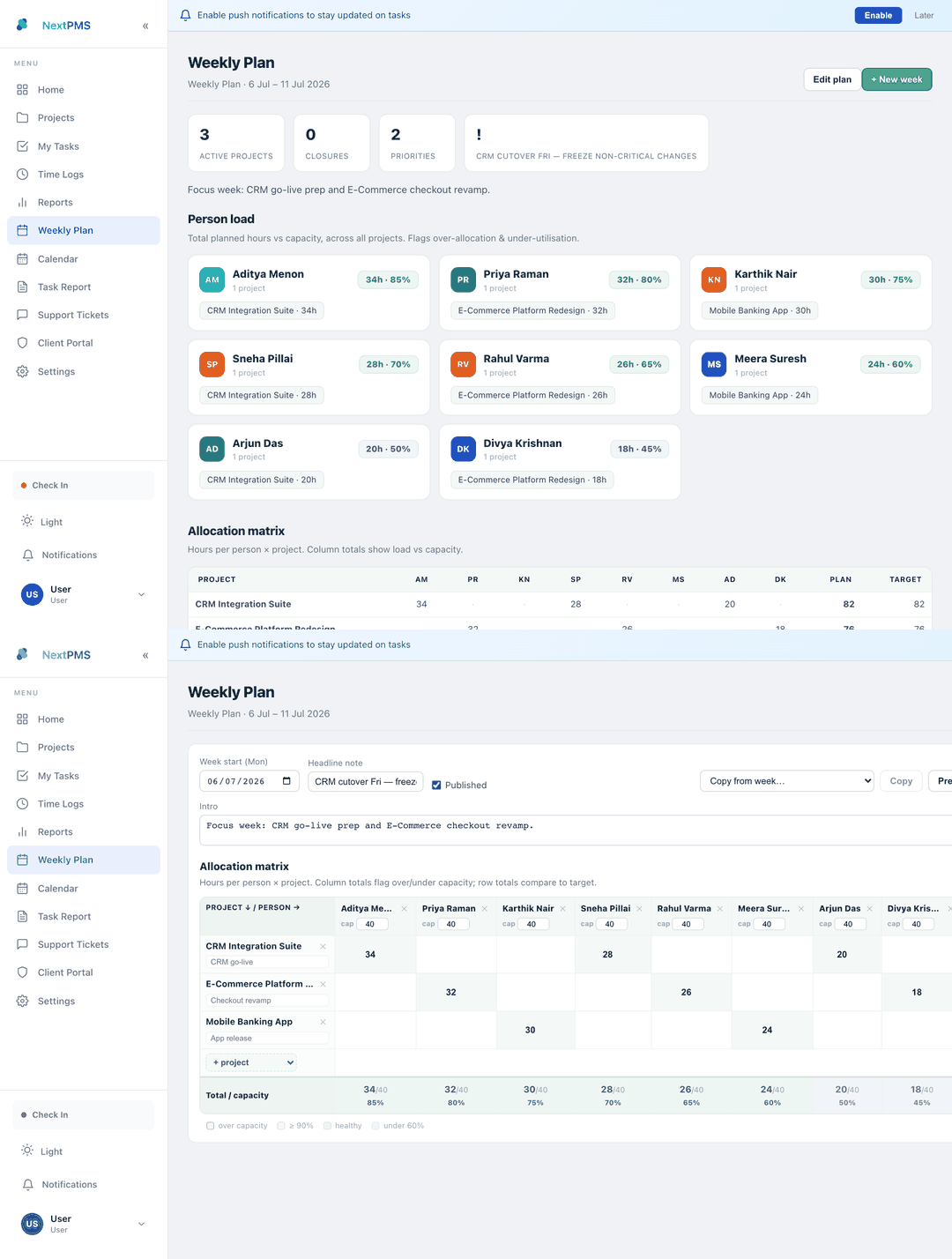
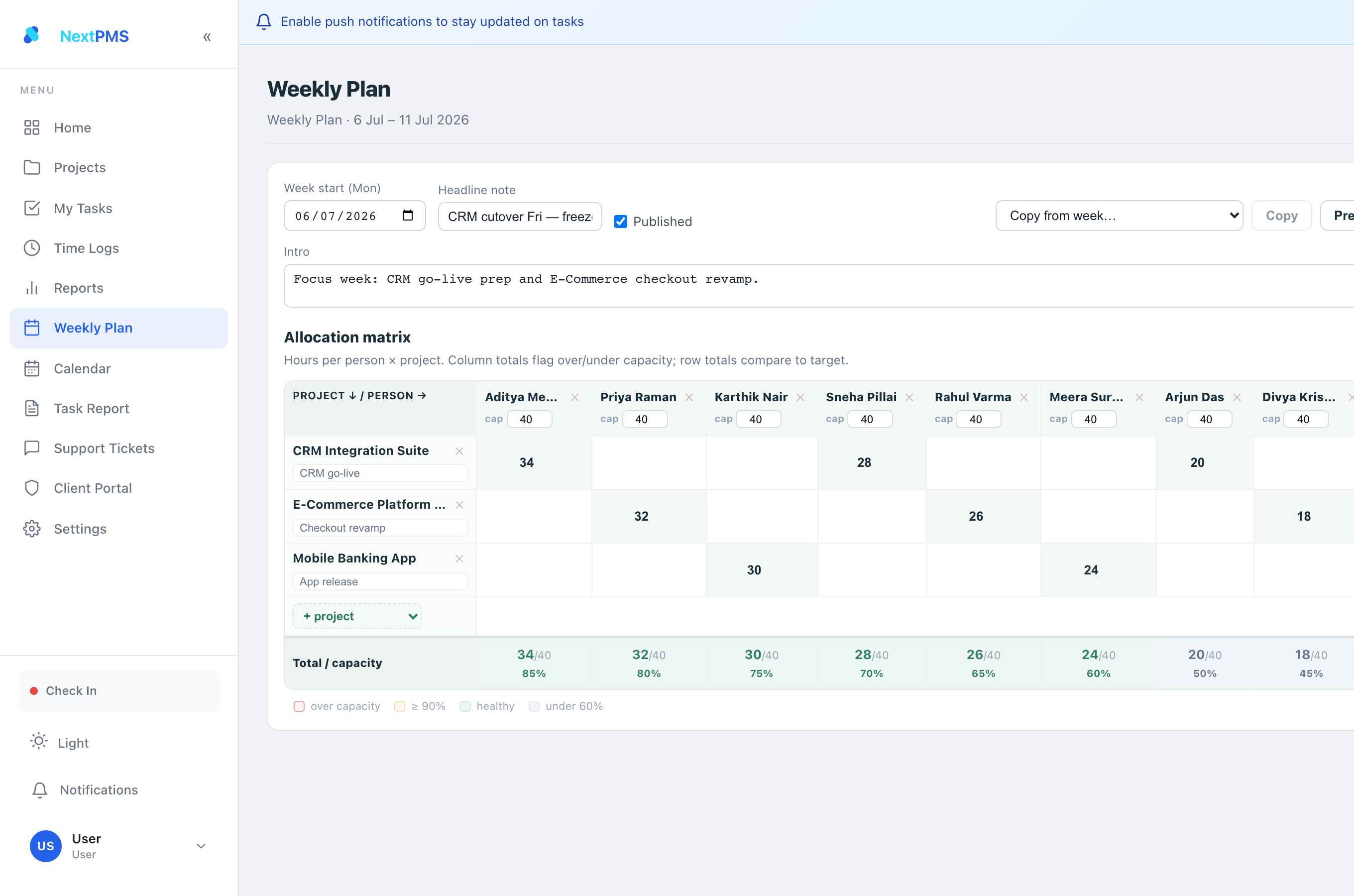
Management publishes an Excel-style projects × people matrix every week: planned hours per (project, member), plus priorities, closures and a watch list.
- Team members: check Monday morning — it is your commitment for the week. Hours you log on planned projects feed the Plan Adherence dimension of the Performance Score.
- Managers: allocations automatically sync each project's planned hours and team; publishing makes the plan visible and scoreable.
Calendar & Meetings
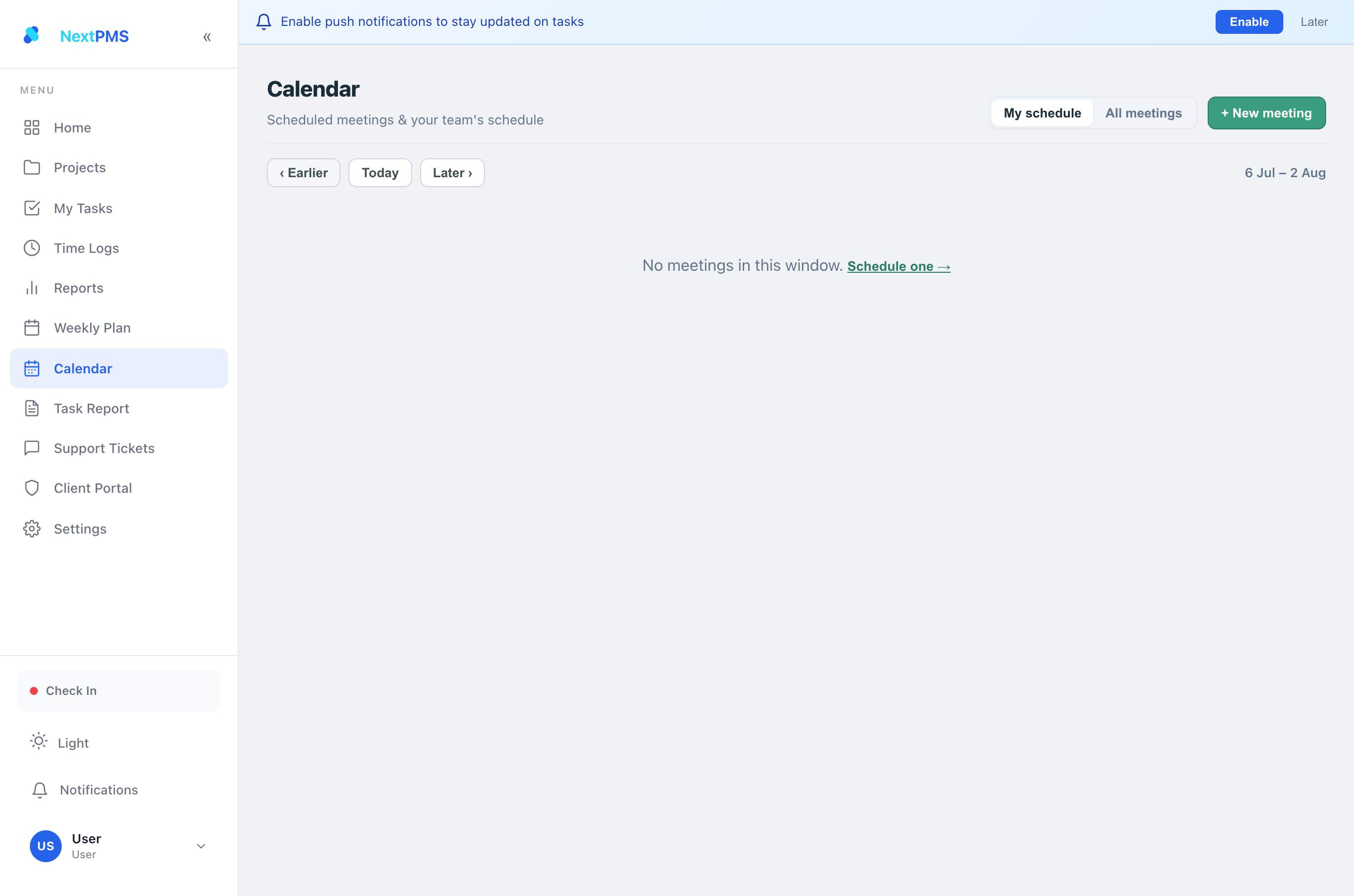
- Schedule meetings with attendees from the Calendar view; cards are colour-coded by timing.
- Minutes of Meeting (MoM) are mandatory — a meeting isn't complete until minutes are recorded.
- Meetings can spawn tasks (source meeting is linked on the task).
Task Report
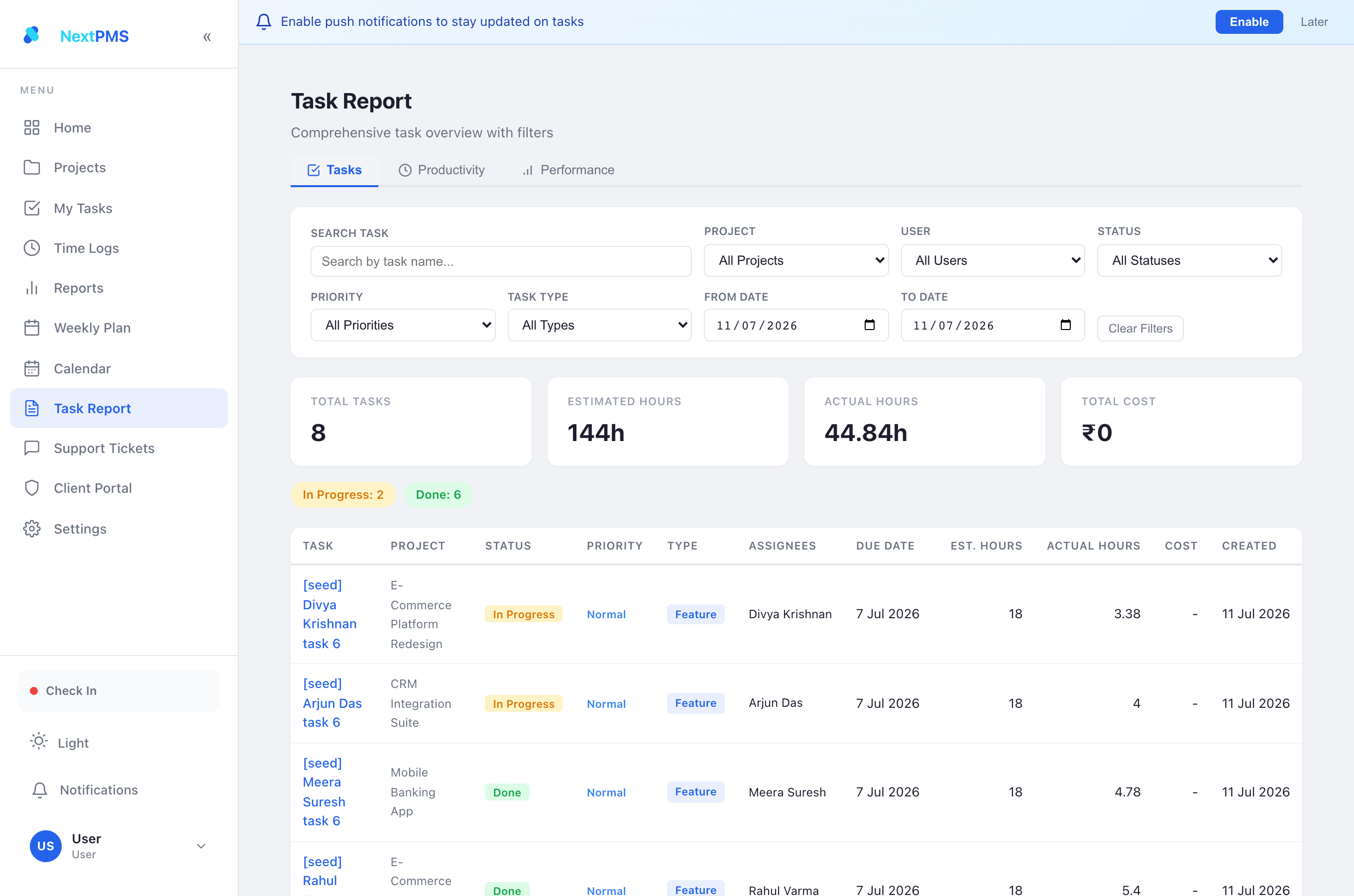
Three tabs under Task Report:
| Tab | Audience | Contents |
|---|---|---|
| Tasks | All | Filterable task table (project, user, status, priority, type, date window) with cost summary for finance-enabled users |
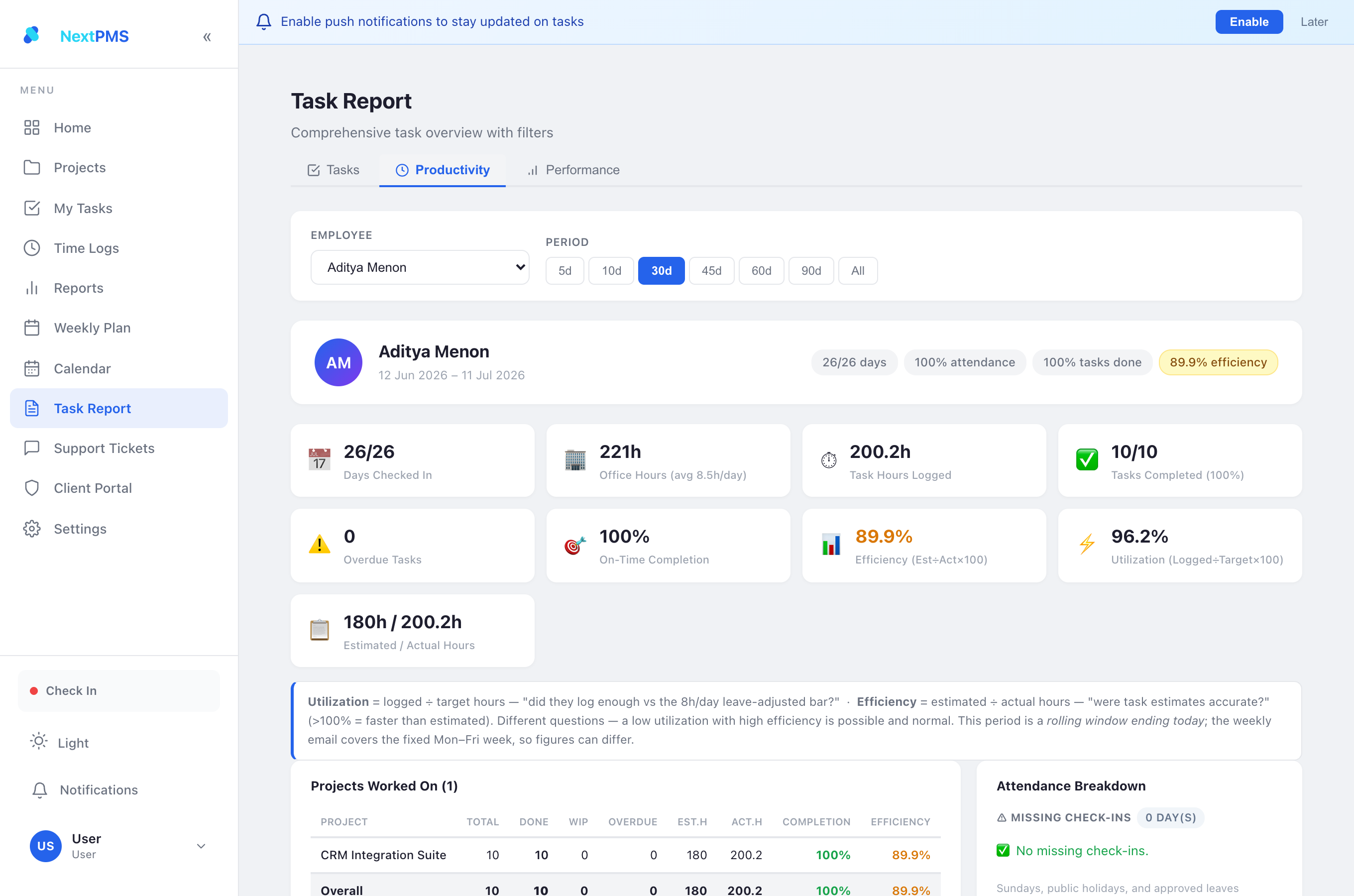
| Productivity | All (own data) / managers (anyone) | Per-employee: attendance, office hours, logged hours, tasks, on-time %, Efficiency, Utilization, day-wise chart, per-project table, leave & holiday breakdown |
| Performance | Management only | Composite Performance Score + full methodology documentation (see below) |
Metrics Explained — Utilization vs Efficiency
Two percentages appear across Next PMS and are not comparable to each other:
| Utilization | Efficiency | |
|---|---|---|
| Formula | logged hours ÷ target hours × 100 | estimated hours ÷ actual hours × 100 |
| Question | "Did I log enough hours against the 8h/day bar?" | "Were the task estimates accurate?" (>100% = faster than estimated) |
| Low value means | Under-logged — low activity or timers not run | Slower than estimated (or tight estimates) |
Target hours — the fair bar
Target = 8h × effective working days. Sundays, public holidays and approved leave are removed before any percentage is computed; half-day leave deducts 0.5 day. You are never penalised for approved absence — a sick day lowers your target, not your score.
Why the weekly email and Task Report can disagree
- Different windows: the email always covers the fixed Mon–Fri week; Task Report periods roll back from today. Opened on Saturday, a "5d" view covers Tue–Sat — different days summed.
- Different headline metrics: the email leads with Utilization, the report leads with Efficiency. 49% utilization and 79% efficiency for the same person in the same week can both be correct — volume vs accuracy.
- Same engine underneath: identical leave/holiday/target logic everywhere; only the window and the question differ.
Performance Score (Management)
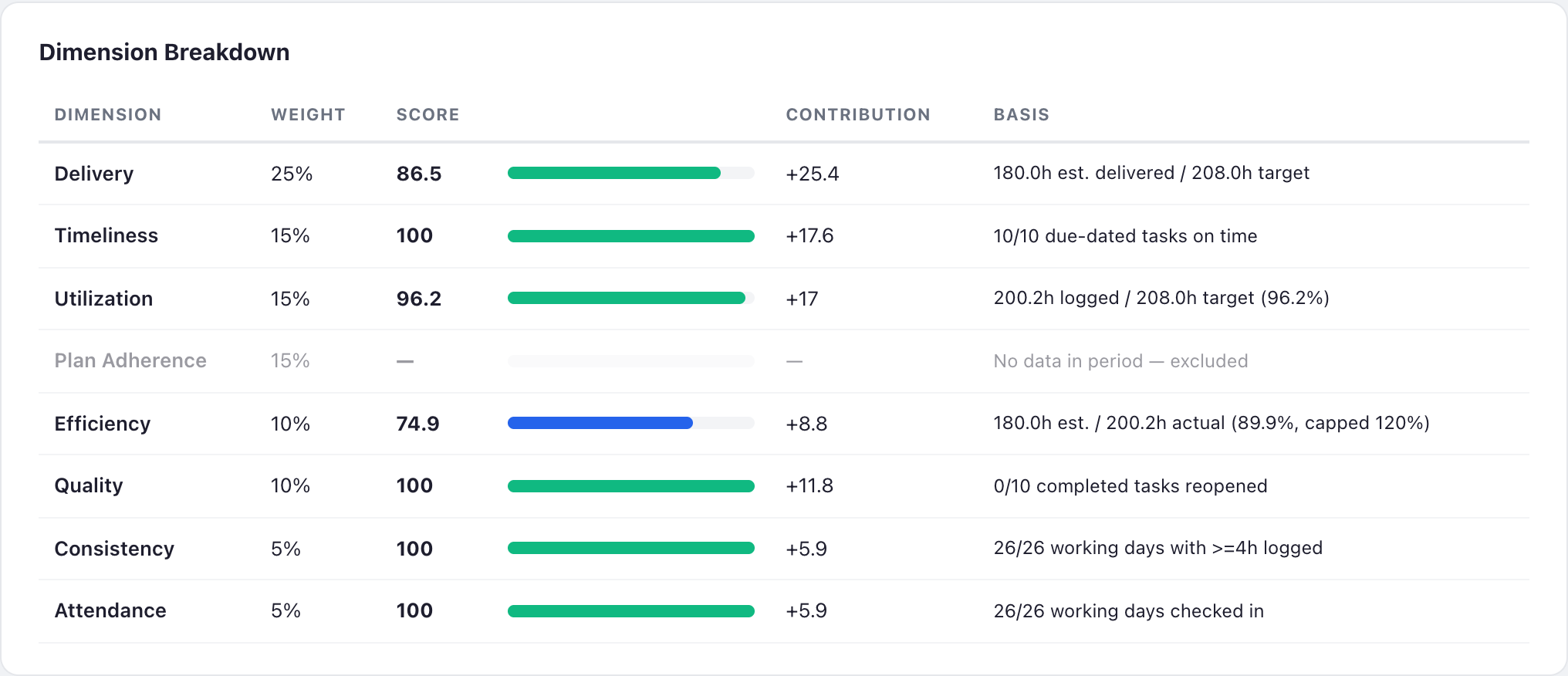
A single 0–100 composite used as an input to appraisals, increments and promotions. Weighted across 8 dimensions:
| Dimension | Weight | Measures |
|---|---|---|
| Delivery | 25% | Estimated hours of completed tasks vs target — output volume, size-weighted |
| Timeliness | 15% | On-time completion of due-dated tasks |
| Utilization | 15% | Logged hours vs leave-adjusted target |
| Plan Adherence | 15% | Hours on Weekly-Plan projects vs planned |
| Efficiency | 10% | Estimate accuracy (capped 120%) |
| Quality | 10% | 1 − task reopen rate |
| Consistency | 5% | Steady daily logging vs binge logging |
| Attendance | 5% | Check-in presence on working days |
Bands: A ≥ 85 B ≥ 70 C ≥ 50 D < 50. Dimensions with no data are excluded and weights renormalised — missing data never scores zero.

🏆 Team Leaderboard
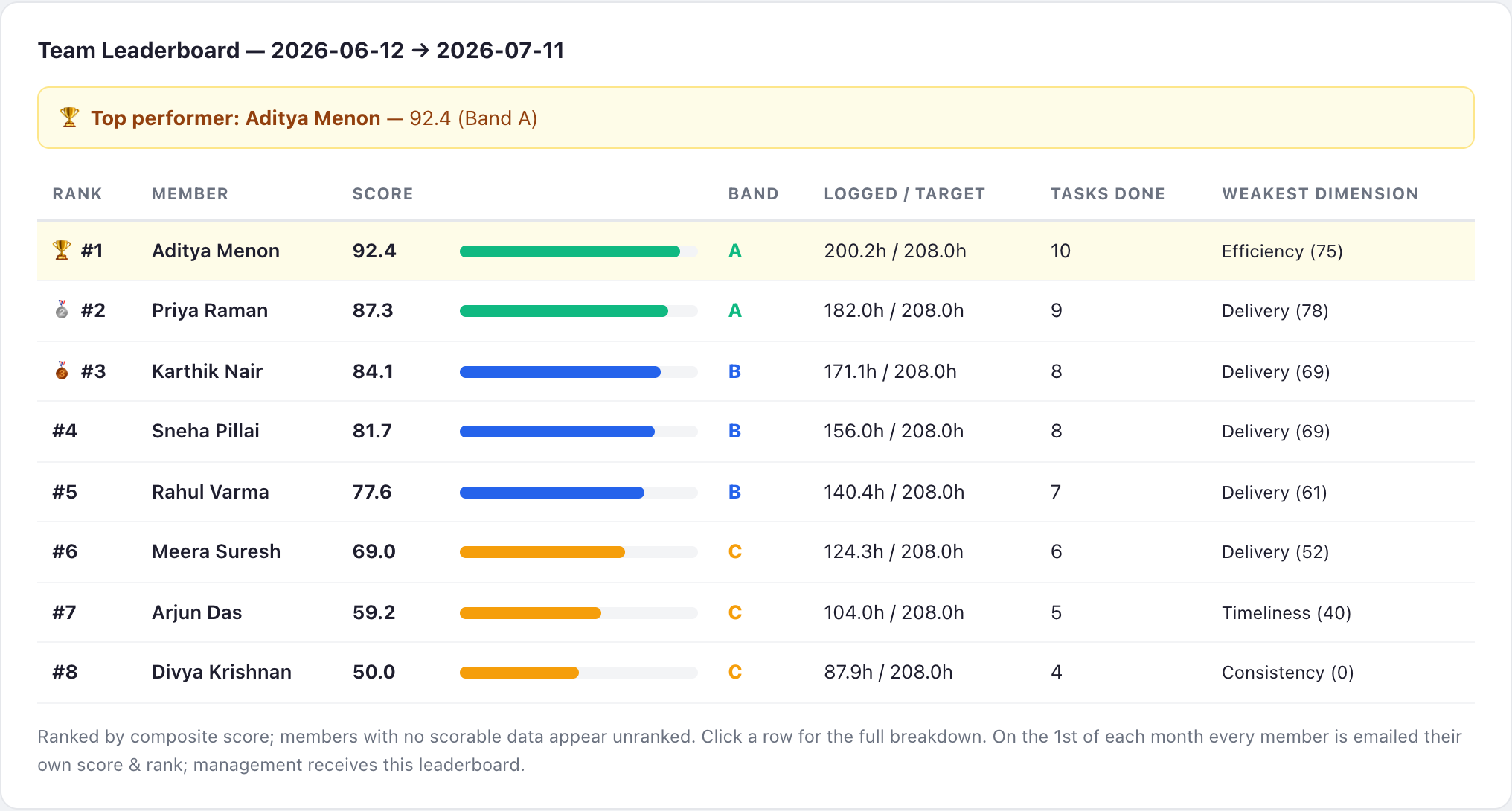
The Performance tab has two views: Individual (one employee's full breakdown) and Leaderboard (every PMS member ranked by composite score for the chosen window). The top performer is highlighted 🏆; #2 and #3 get 🥈 / 🥉. Each row shows score, band, logged-vs-target hours, tasks done and the member's weakest dimension — a low rank always comes with its reason attached. Members with no scorable data appear unranked rather than as zeros. Clicking any row opens that member's individual breakdown.
Analysing specific dates
Besides the rolling periods (5d…90d), a Custom Range (from → to) is available on both views — use it to score an exact appraisal cycle, a single sprint, or one calendar month. Clear it (✕) to return to rolling periods.

📬 Monthly score email
On the 1st of every month at 08:00 the system evaluates the previous calendar month and emails:
- Every member: own score, band, rank ("#3 of 15") and per-dimension scores. Peers' names are not included.
- Management: the full ranked leaderboard, with the month's top performer called out for recognition 🏆.
🧊 Frozen monthly snapshots
Before those emails go out, the same cron writes each ranked member's score into a frozen snapshot record (PMS Performance Score, one per member per month, e.g. PERF-2026-06-name@enfono.com) and submits it. Why this matters:
- Appraisal-safe. Live scores drift — tasks get reopened, estimates edited, leave approved retroactively. A snapshot is computed once and locked; recomputing June in December can't change what HR filed. Emails are generated from the snapshot, so what you received is exactly what's on record.
- Tamper-evident. Computed values on a submitted snapshot cannot be edited by anyone — the system rejects the change. Nobody can delete or cancel a snapshot either. The only permitted change is the management adjustment below, and every change is written to the document's version history (who, when, old → new).
- Trend history for free. The Individual view's Score History card lists every frozen month — score bar, band, rank — so a 6–12 month trajectory is one glance, no recomputation.
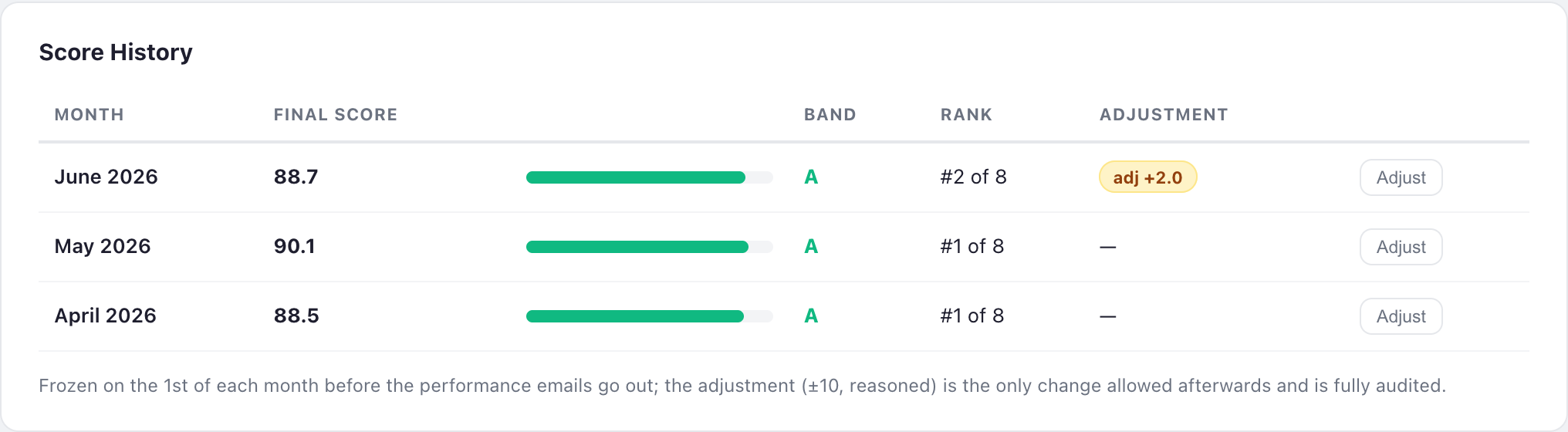
adj badge where a management adjustment was applied (hover shows the reason).✏️ How to apply a management adjustment (±10)
Metrics can't see everything — a production firefight, mentoring load, a client escalation handled off-ticket. Managers can correct a frozen month by up to ±10 points, with the reason on record:
- Open Task Report → Performance → Individual and select the employee.
- In the Score History card, find the month and click Adjust.
- Enter the adjustment (
-10 … +10) and a reason — mandatory whenever the adjustment is not zero. Save. - The row updates instantly: Final Score = frozen score + adjustment (clamped 0–100), band recomputed, and an
adj ±nbadge appears — hover it to read the reason and who adjusted.
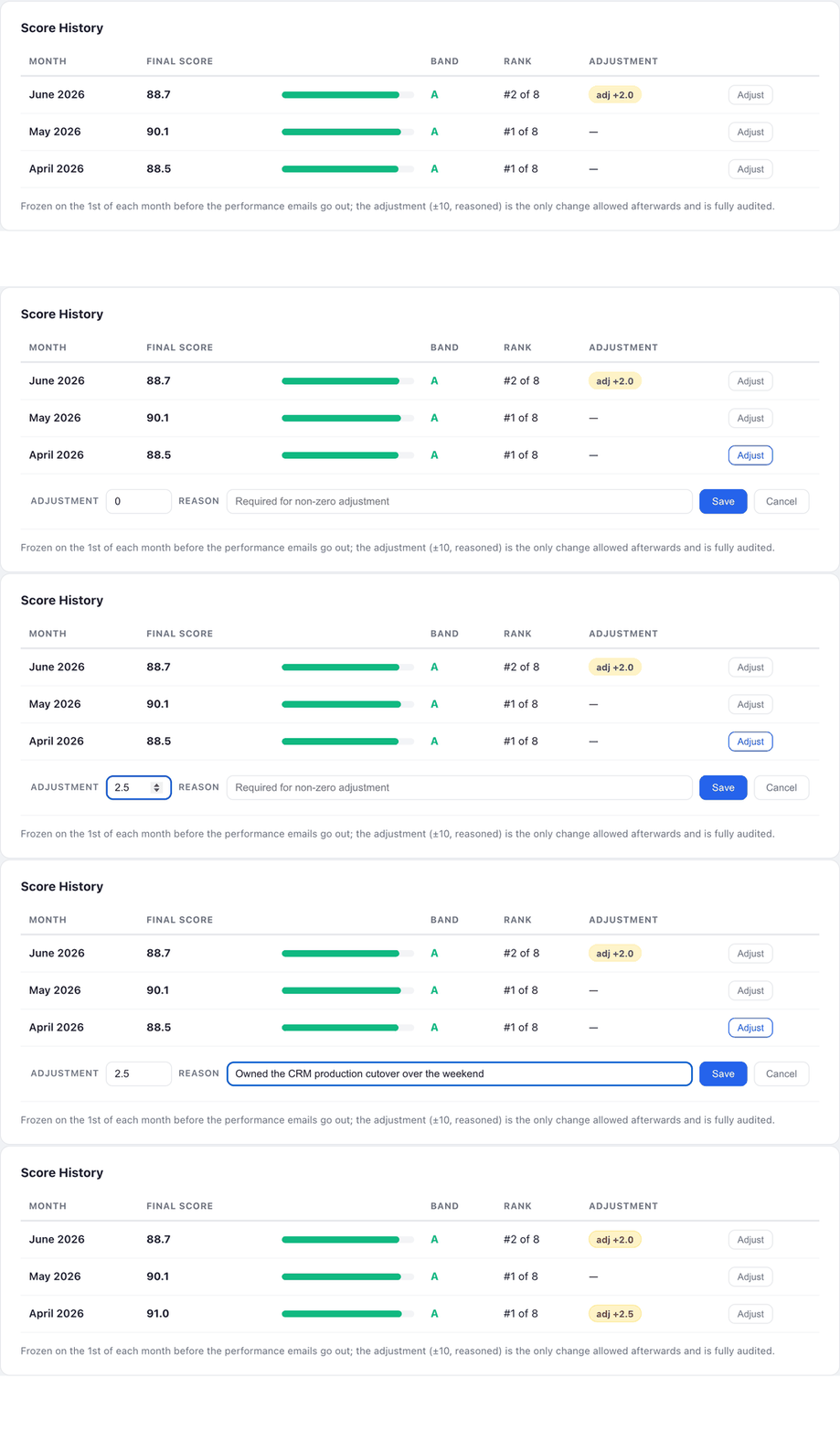
adj +2.5 badge appears, all captured in the version trail.
Automated Emails
| Schedule | To | Contains | Off switch | |
|---|---|---|---|---|
| Daily AI report | Daily 03:00 | Management | Per-person daily metrics, plan-vs-actual, anomalies | Enable Daily Report |
| Scheduled project reports | 08:00 Mon–Sat | Per report config | Single/multi-project status reports | Per report schedule |
| Your Weekly Work Summary | Saturday 07:00 | Each member | Own hours, target, Utilization, Efficiency, tasks, attendance | Enable Weekly Summary |
| Team Weekly Work Summary | Saturday 07:00 | Management recipient | All-member table: Logged / Target / Utilization / Efficiency / Tasks Done | Enable Weekly Summary |
| Your Monthly Performance Score | 1st of month 08:00 | Each member | Own composite score, band, rank, dimension scores for the previous month | Monthly Performance Enabled |
| Team Performance Leaderboard | 1st of month 08:00 | Management recipient | Ranked leaderboard, top performer of the month | Monthly Performance Enabled |
| Check-in / check-out reminders | 08:30 Mon–Sat | Member + manager digest | Missing check-in / check-out for the previous working day | Enable Attendance Reminders |
| Task deadline reminder | Daily | Assignee | Tasks due tomorrow (not Done/Cancelled) | — |
| Long-running timer alert | Hourly | Timer owner | Timer running 4+ hours — stop or confirm | — |
| Budget alert | Daily check | Project manager | Project at ≥80% budget utilisation | — |
All "off switches" live in PMS AI Settings (see Settings Reference). Recipients: member emails go to the member; management copies go to the configured Weekly Team Summary Recipient.
In-App Notifications
The bell icon (sidebar) shows unread notifications; mark one or all read from the panel. Notifications are created for:
| Trigger | Who is notified |
|---|---|
Task assigned to you / task comment with @mention | Assignee / mentioned user |
| Task due tomorrow | Assignee |
| Timer running 4+ hours | Timer owner |
| Project budget ≥ 80% | Project manager |
| Client comment on a portal task | Project team |
Real-time updates (Kanban moves, new comments) arrive live via Socket.io — no refresh needed. The mobile app (PWA) additionally supports push notifications.
Settings Reference (PMS AI Settings)
Admin-only single settings document that controls reports, emails and the hours baseline (Desk → PMS AI Settings).
| Group | Setting | What it does |
|---|---|---|
| AI | AI Provider / API Key / Model | LLM used for the daily AI report narrative |
| Fallback Provider / API Key / Model | Secondary LLM if the primary fails | |
| Report Detail Level | Verbosity of the daily AI report | |
| Daily report | Enable Daily Report | Master switch, daily 03:00 |
| Primary Recipient / Additional Recipients | Who receives the daily AI report | |
| Plan Evaluation Department | Department whose Weekly Plan is evaluated in the report | |
| Hours baseline | Working Hours Per Day | The daily target (default 8h) behind Utilization, targets and the Performance Score |
| — | Sundays, holiday lists and approved leave are always excluded automatically (not configurable per user) | |
| Weekly/monthly | Enable Weekly Summary | Saturday member + team emails |
| Weekly Team Summary Recipient | Management inbox for team summary and monthly leaderboard | |
| Attendance | Enable Attendance Reminders | 08:30 missing check-in/out nudges |
| Manager Digest Recipients | Managers receiving the attendance digest | |
| Budget | Budget Approver Emails | Who approves budget requests |
Per-user access control (sidebar items, project tabs, feature switches, finance visibility) is separate — User Detail → Permissions, admin only. Roles are covered in Roles & Access.
Client Portal
- Customers get a token link (
/pms-portal?token=…) — no ERPNext login. - They see progress, sprint status and task lists; they can comment on tasks. Internal costs and budgets are never exposed.
- PMs manage portal access from the project's Client Settings.
Support Tickets
Client-raised or internal tickets tracked under Support Tickets (managers/admins). Tickets can be converted into PMS Tasks (task type Support Ticket) so the work is timed and reported like everything else.
FAQ
| Question | Answer |
|---|---|
| My utilization looks low but I worked all week? | Timer discipline — check-in hours don't count as work hours. Run the timer on tasks. |
| I was on approved leave — does it hurt my numbers? | No. Leave days are removed from your target before any % is computed. |
| Email says 49% but Task Report says 79% — bug? | No — two different metrics over two different windows. See Metrics Explained. |
| Who can see my Performance Score? | Management only (System Manager / PMS Manager). Not visible to peers. |
| Task estimate looks wrong — can I change it? | Ask your PM. Estimates are PM-controlled because they feed evaluation metrics. |
| I can't see Reports / Settings in the sidebar | Role defaults. An admin can enable them per user in User Detail → Permissions. |
Roadmap
| Status | Item | Detail |
|---|---|---|
| Shipped | Monthly Performance Score snapshots | Frozen submittable record per employee-month (PERF-YYYY-MM-user), created by the monthly cron before emails; Score History trend card. See Performance Score. |
| Shipped | Management adjustment ±10 with mandatory reason | Bounded, audited post-freeze correction on the snapshot — who, when, how much, why, all in the version trail. See "How to apply a management adjustment". |
| Planned | Task completion date field | Replace the "Done + modified in window" proxy with a real completion timestamp. |
| Planned | Performance Settings doctype | Management-tunable dimension weights and caps (currently fixed in code). |
| Planned | Android APK release | Capacitor build of the mobile app. |
Next PMS · Enfono Technologies · This guide is served at /pms-guide and updates with the app.